
How to select offers in the materials view
This guide covers the process to efficiently select offers for the assembly parts.
Go to app.cableteque.com
1. Introduction
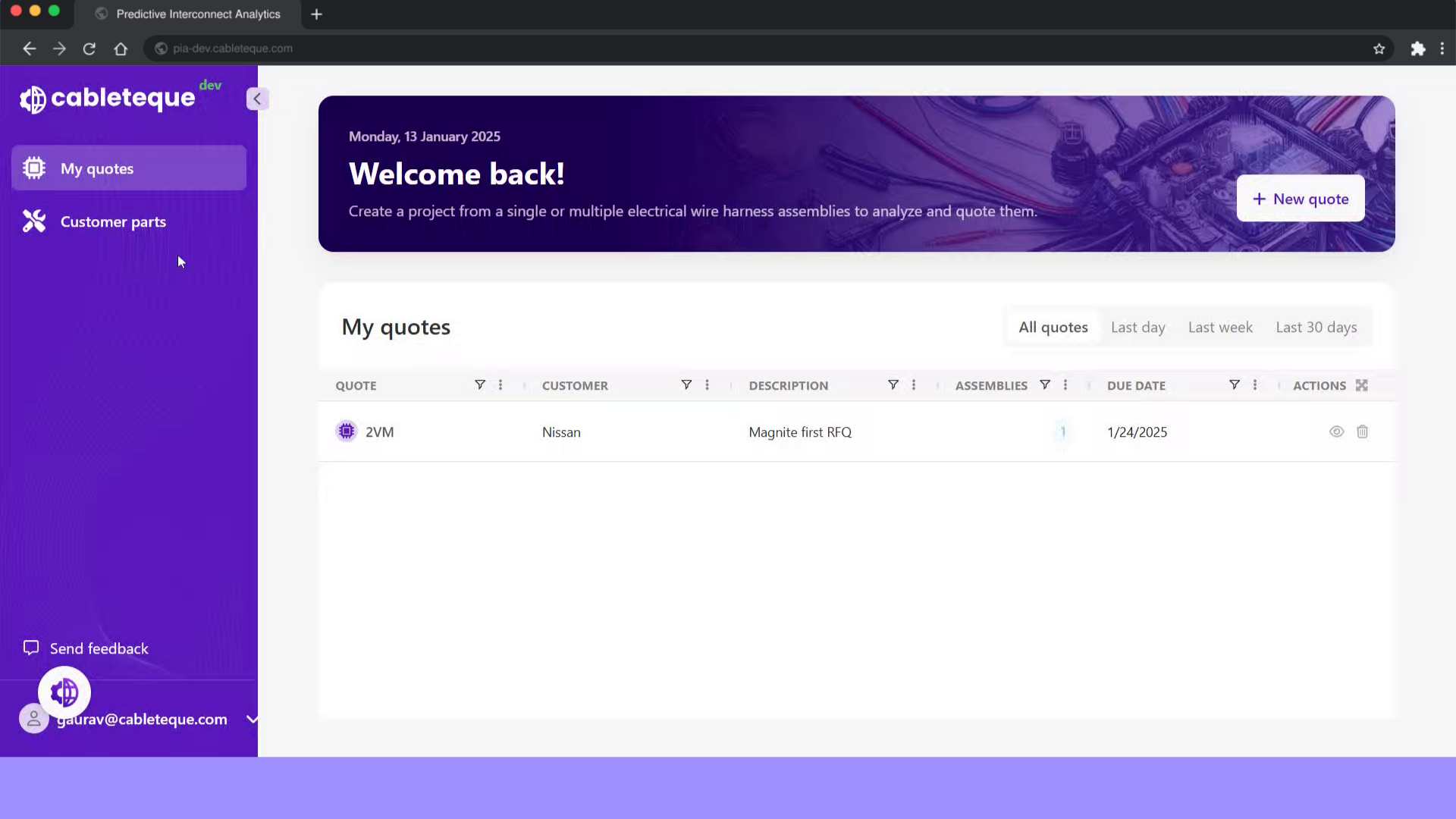
All the quotes are listed under My quotes section. Select the quote.
2. Click "My quotes"
Access "My quotes" section to view all the created quotes.

3. Click "My quotes"
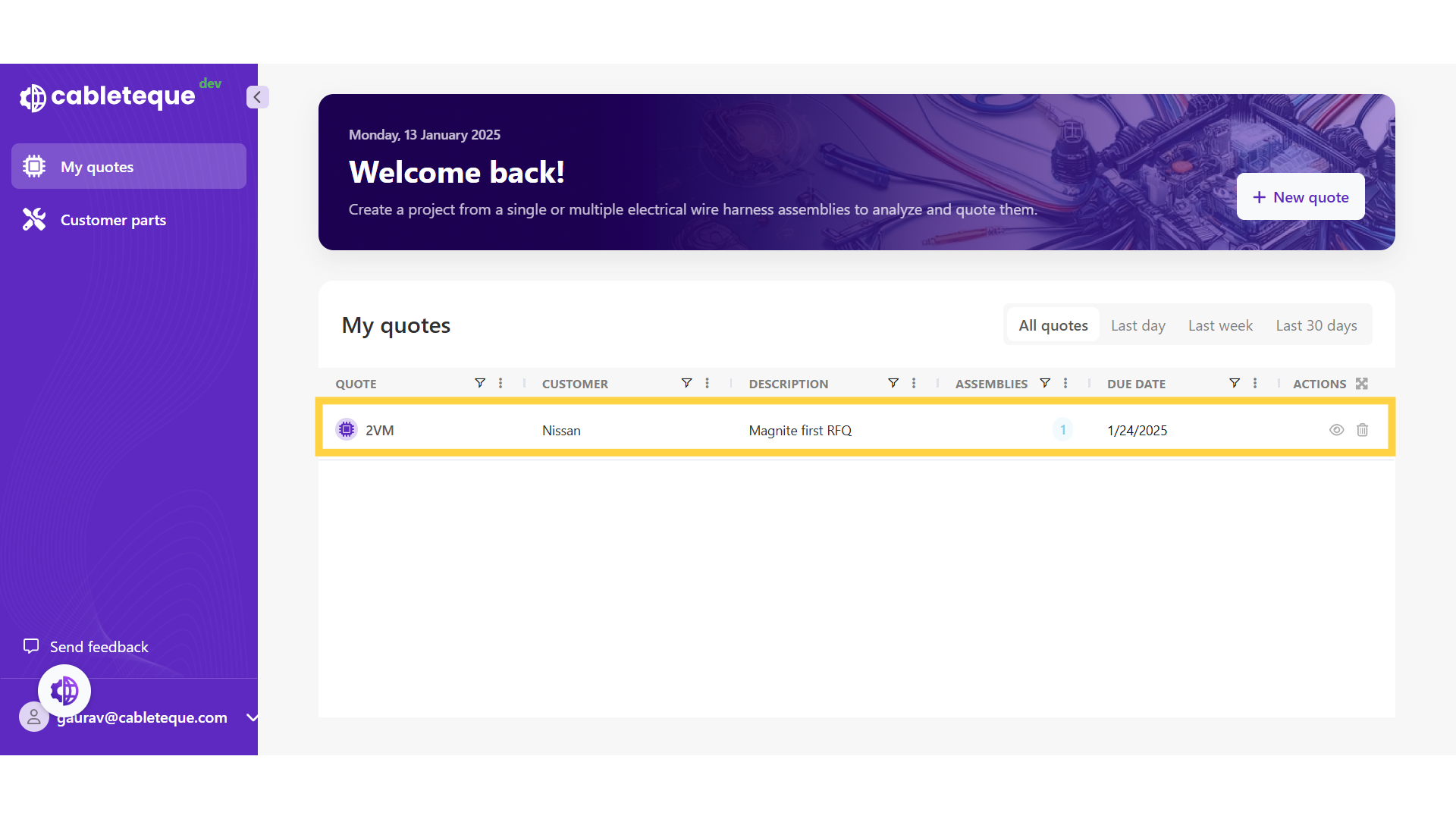
Select a quote from the list for which offers have to be selected.
4. Quote overview
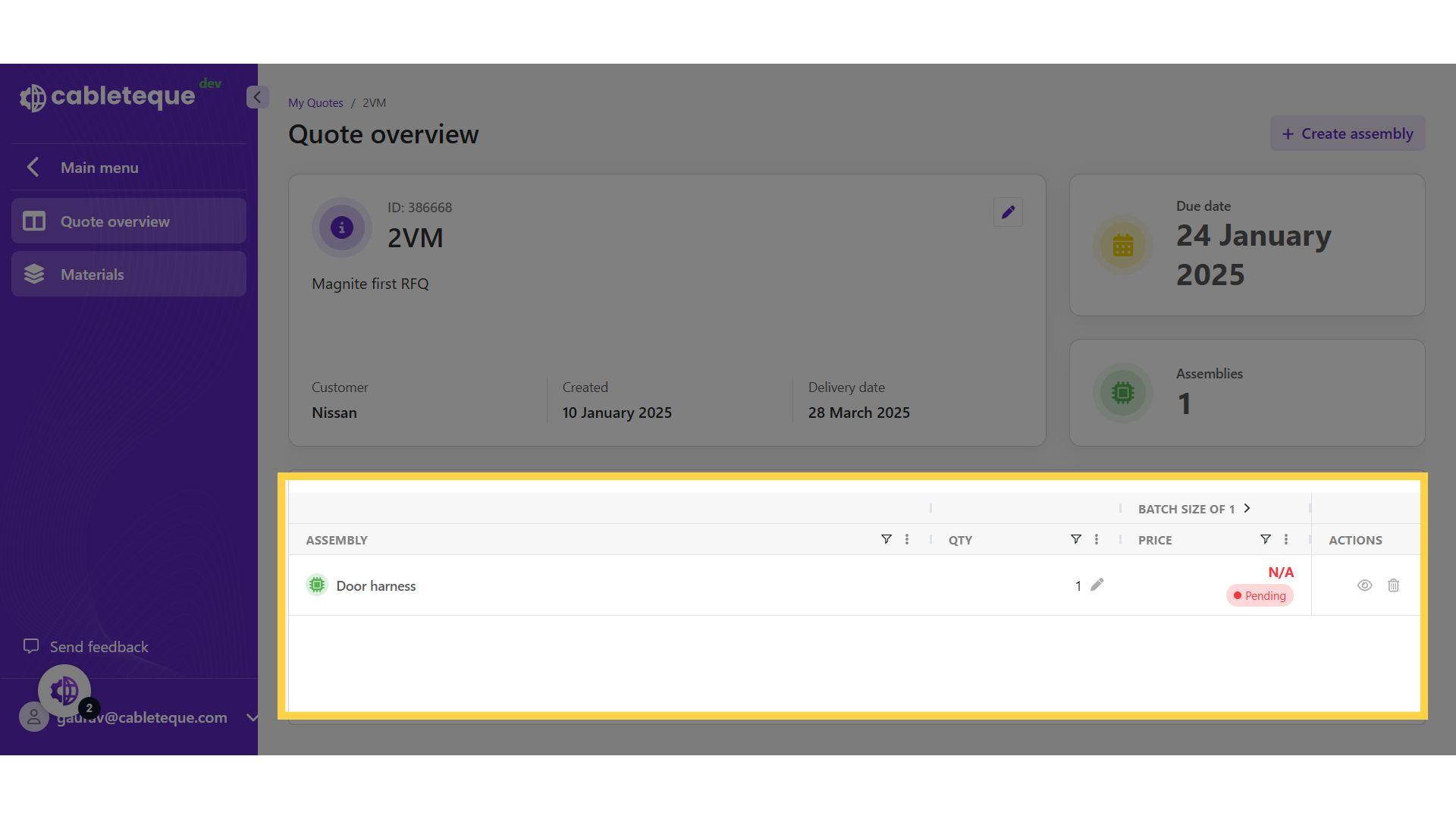
For the selected quote, Created assemblies are listed here.
5. Click "Materials"
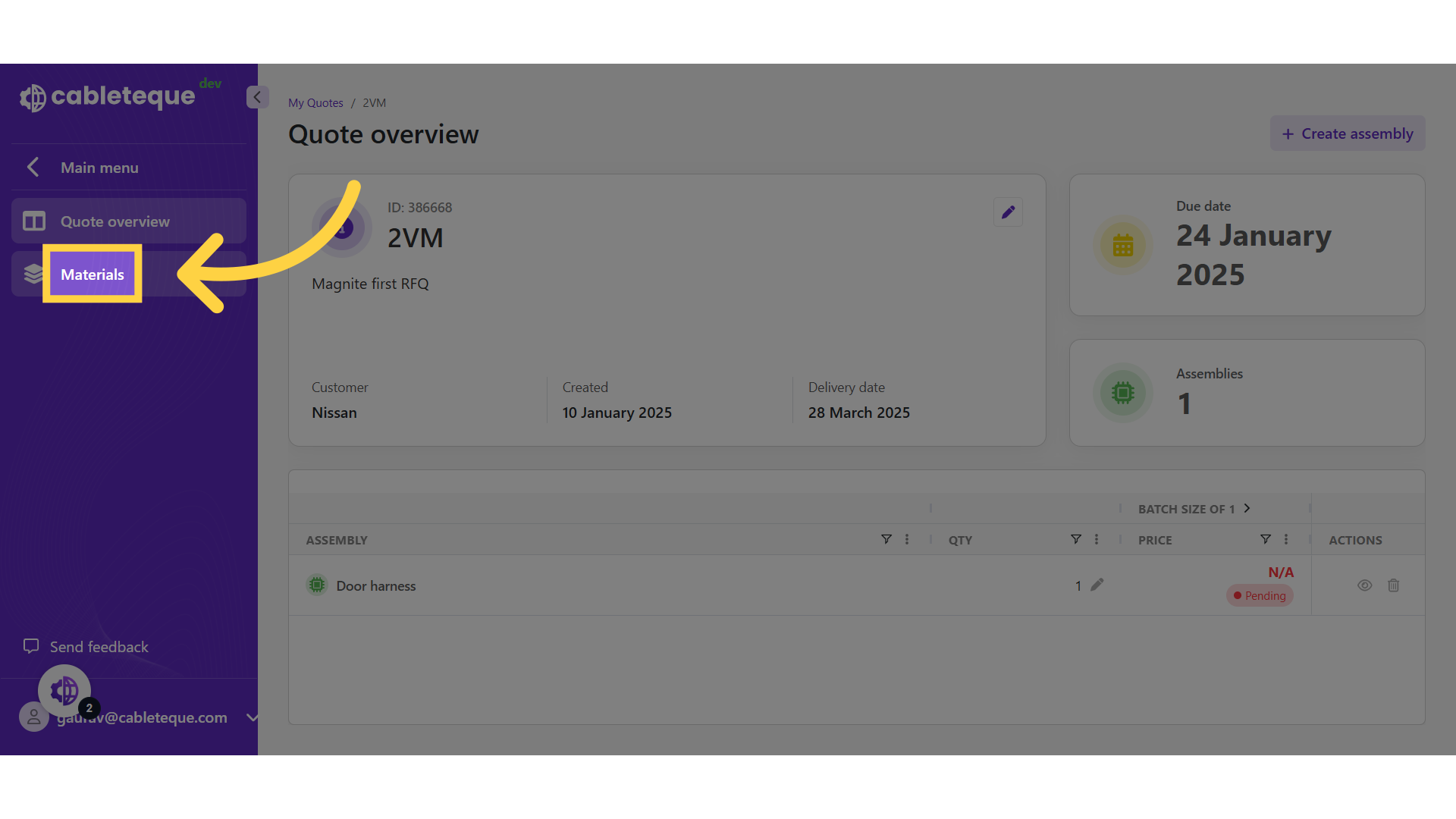
Select the "Materials" option for the offers selection for the assembly parts.
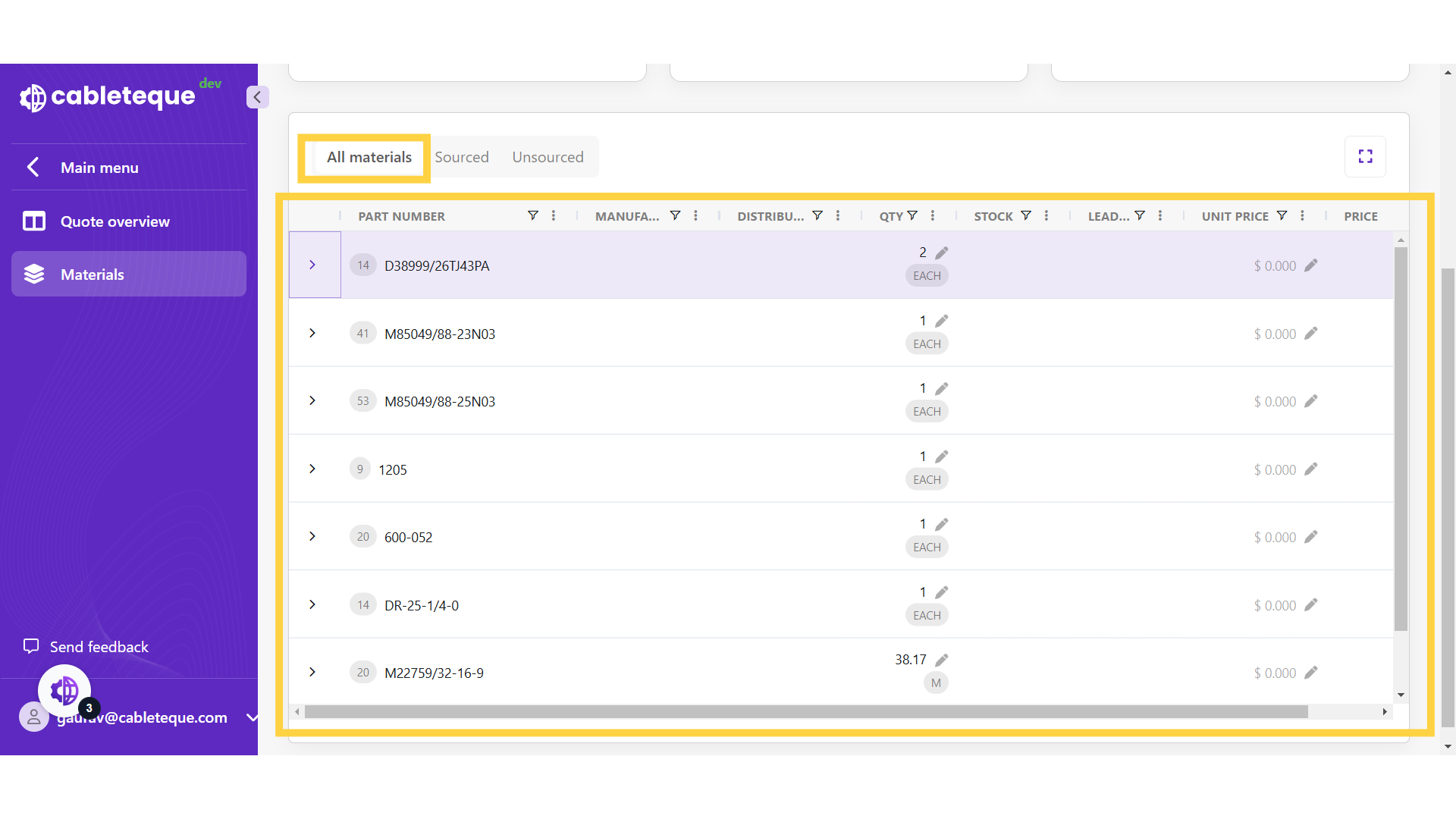
6. Click "All materials"
In materials section, all the BOM parts are listed under All materials tab to select offers.
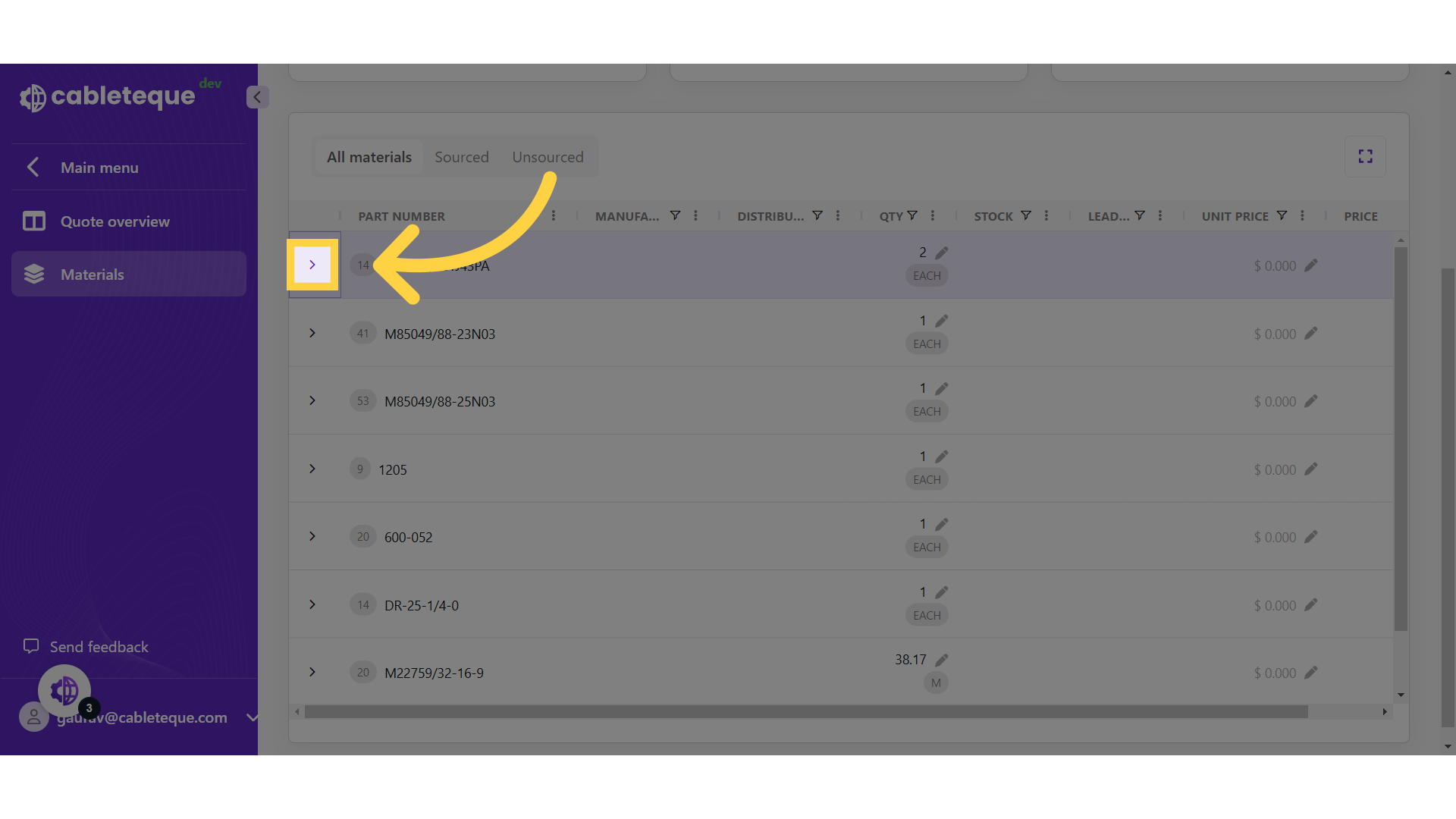
7. View offers
Use this icon to view all offers for the part.
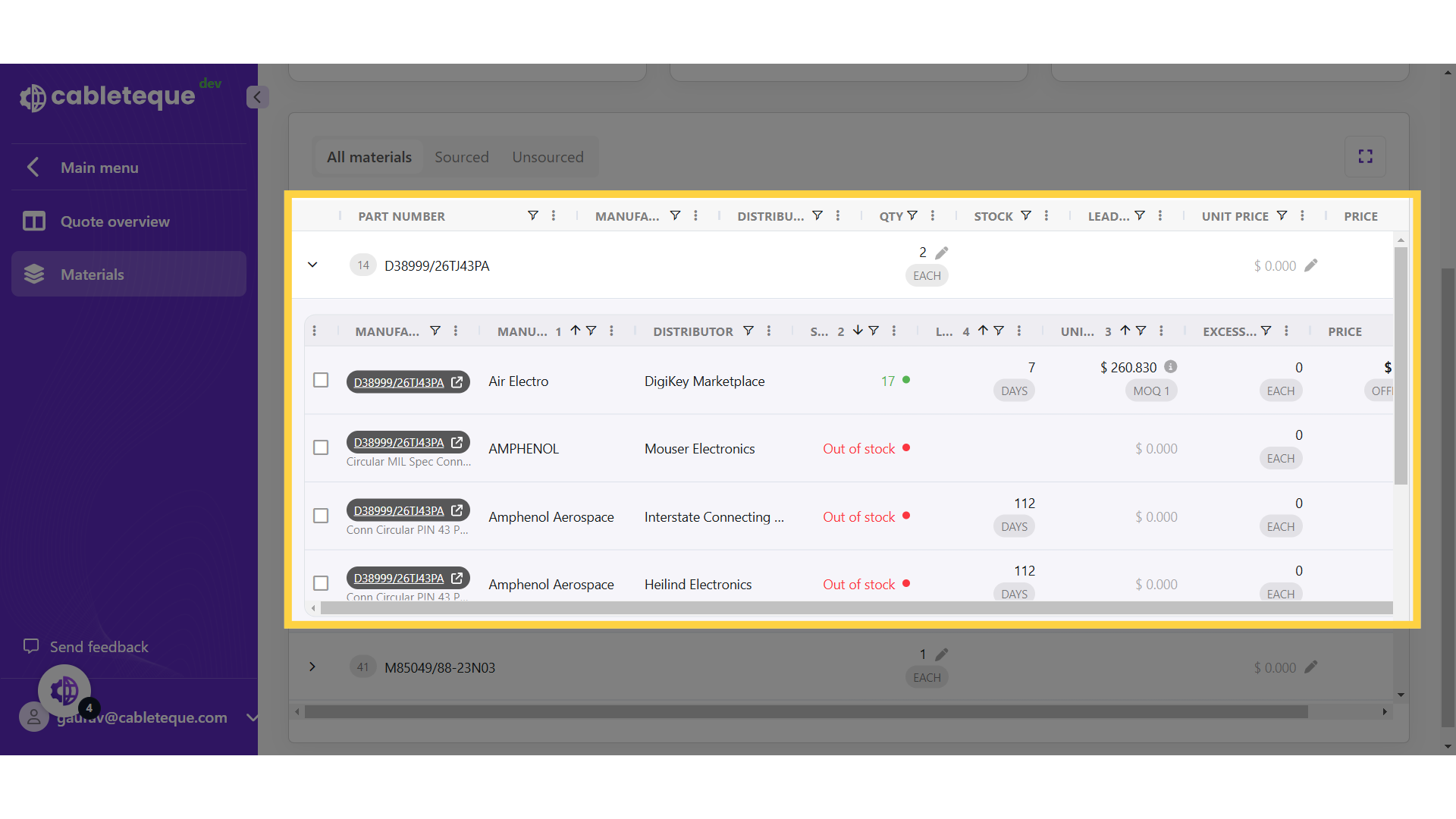
8. Default sort for offers
All offers for the part are listed below it. There is a default setting incorporated for offers columns sorting.
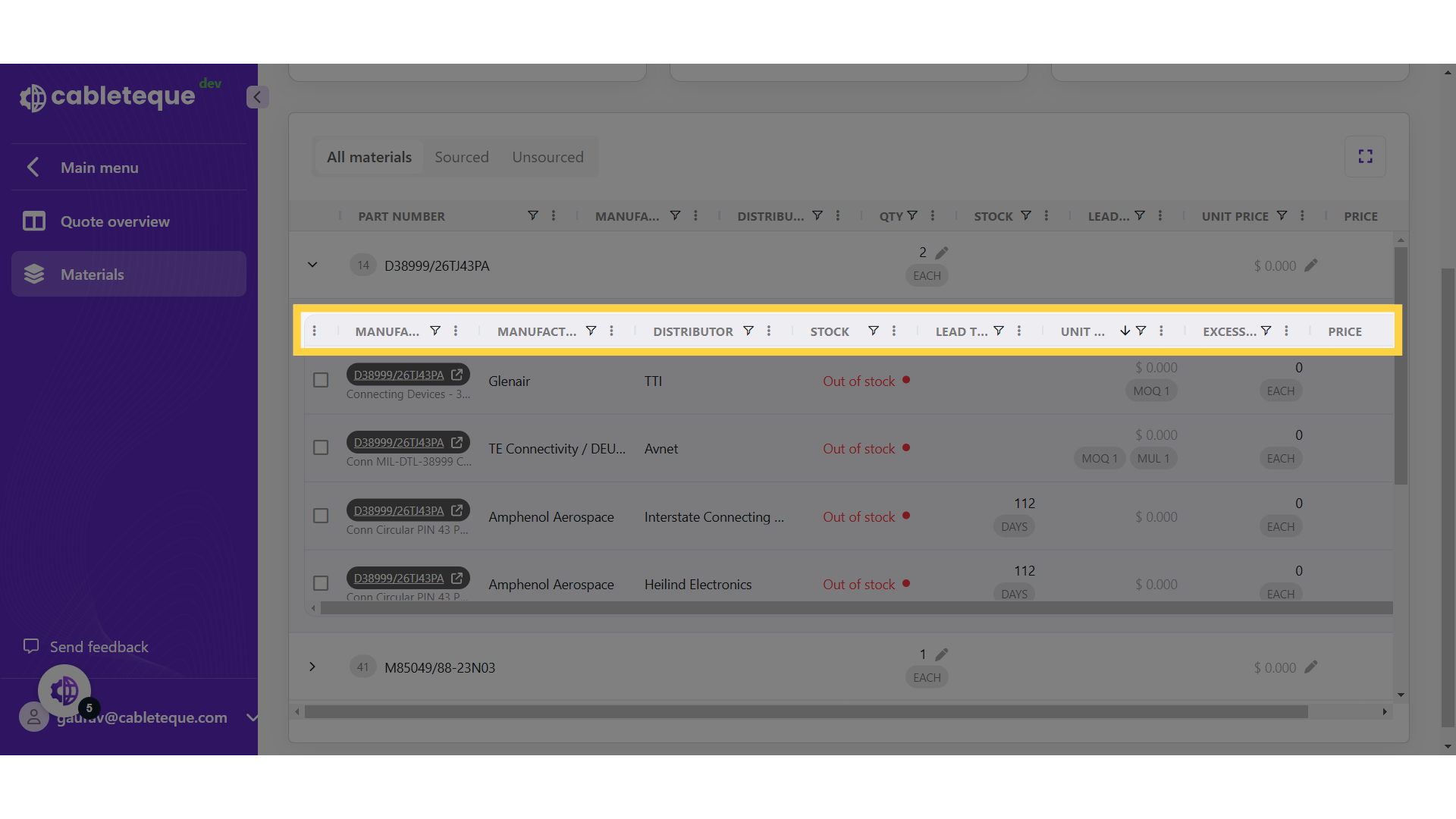
9. Manual sort and filter for offers
The filter and sort options can be reset manually as required for the columns headers.
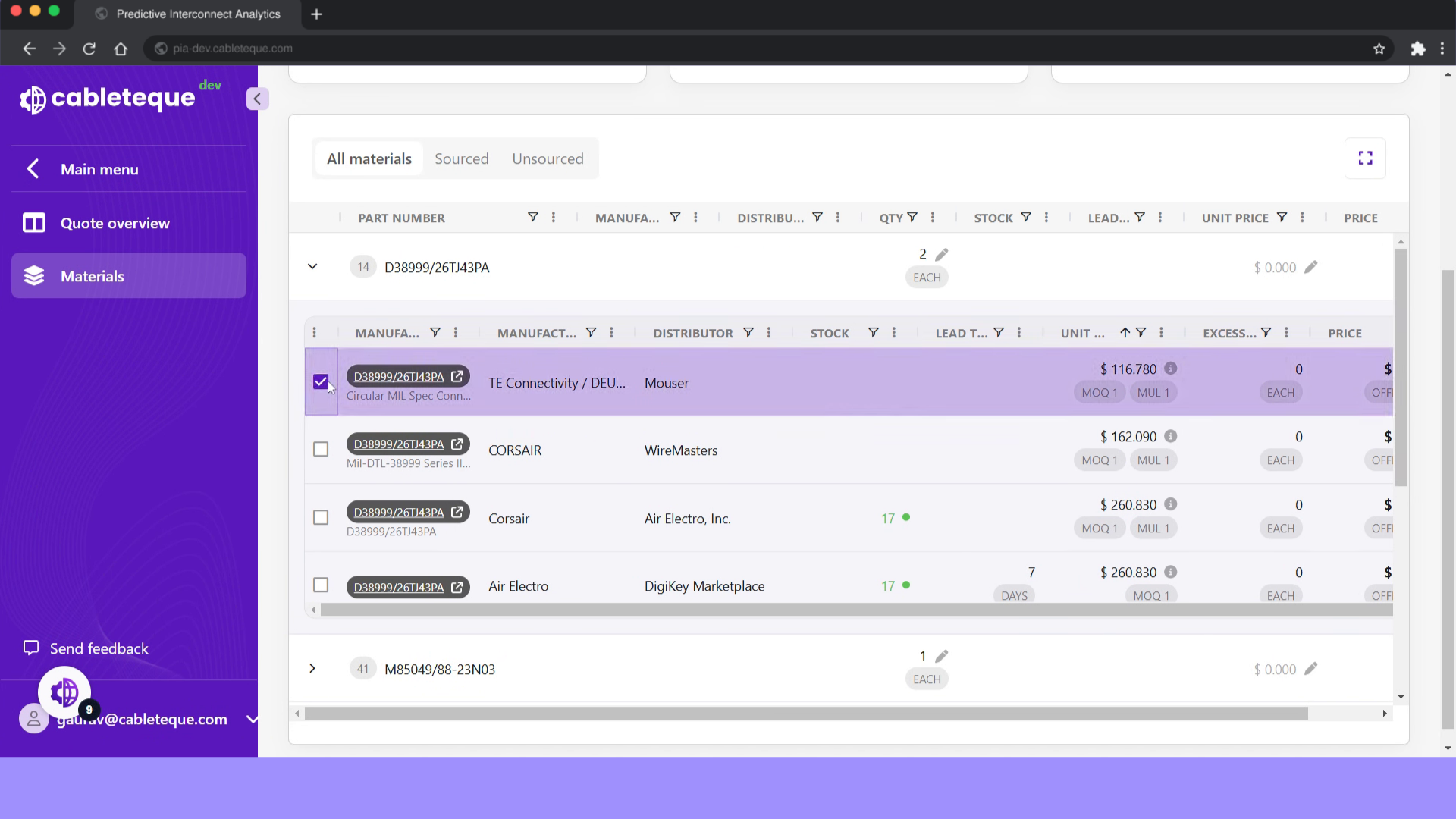
10. Select offer
Select the best offer as per requirement.
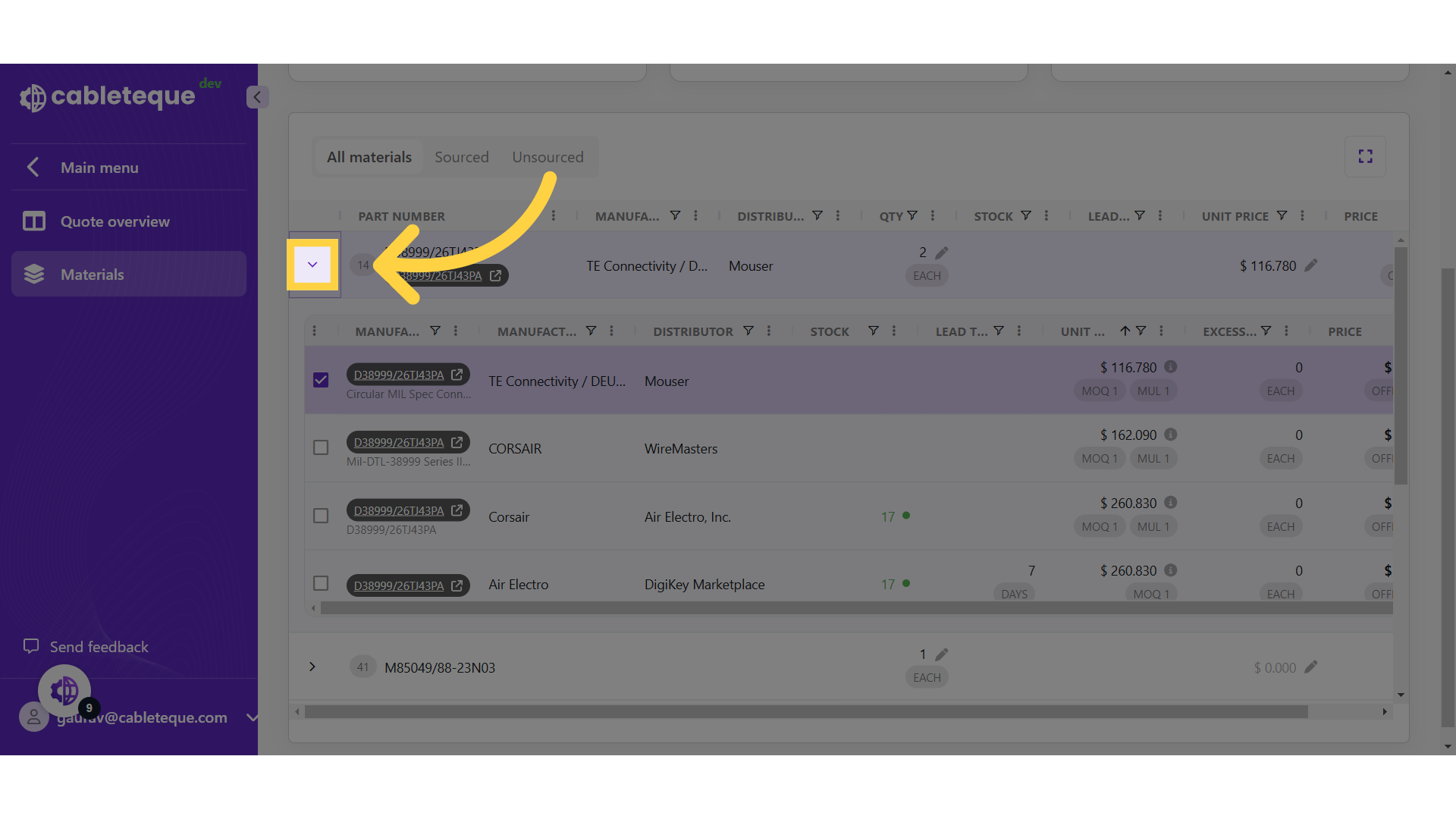
11. Collapse offers list
Use this icon to collapse the offers list for the part.
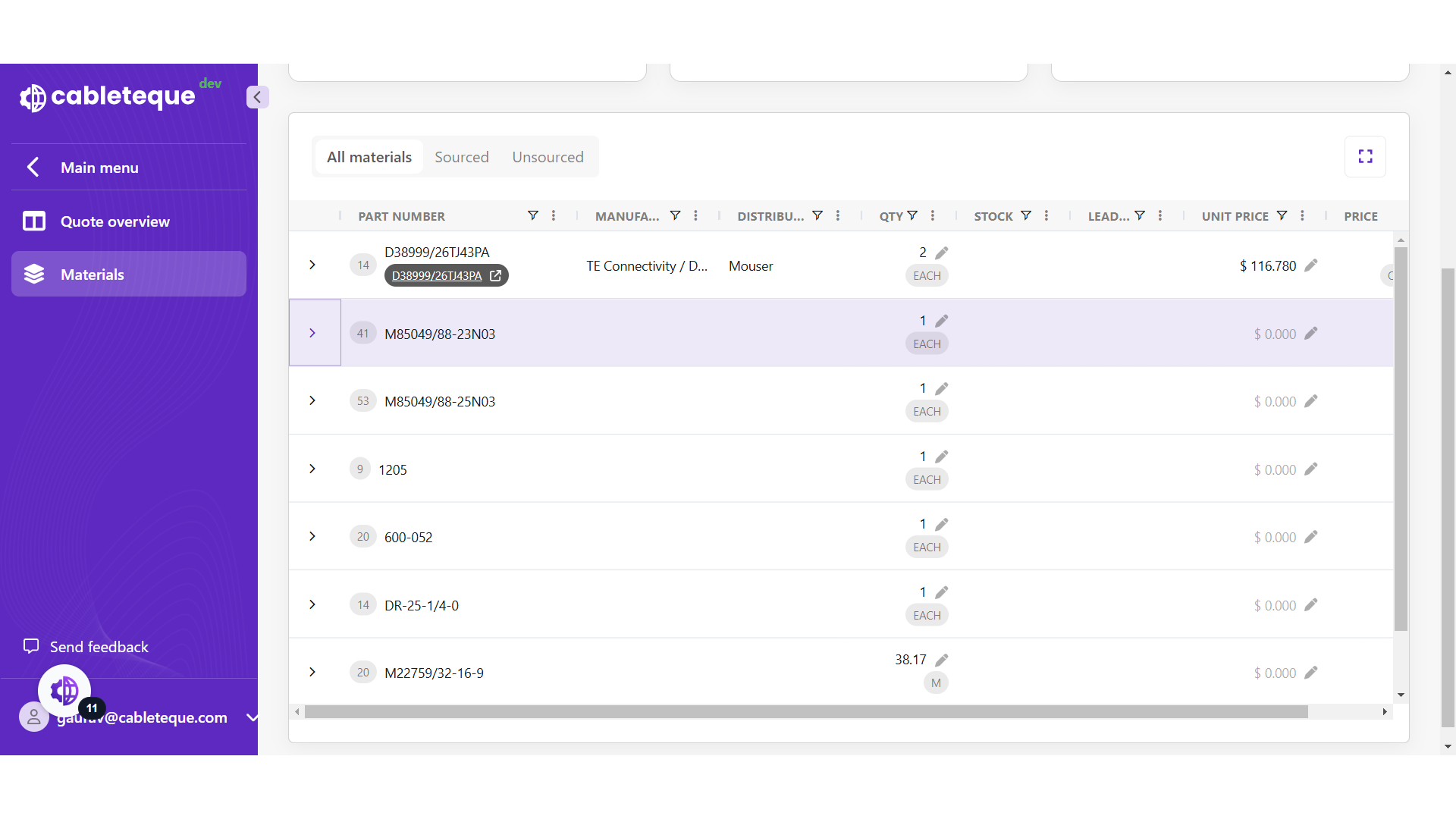
12. View offer for other part
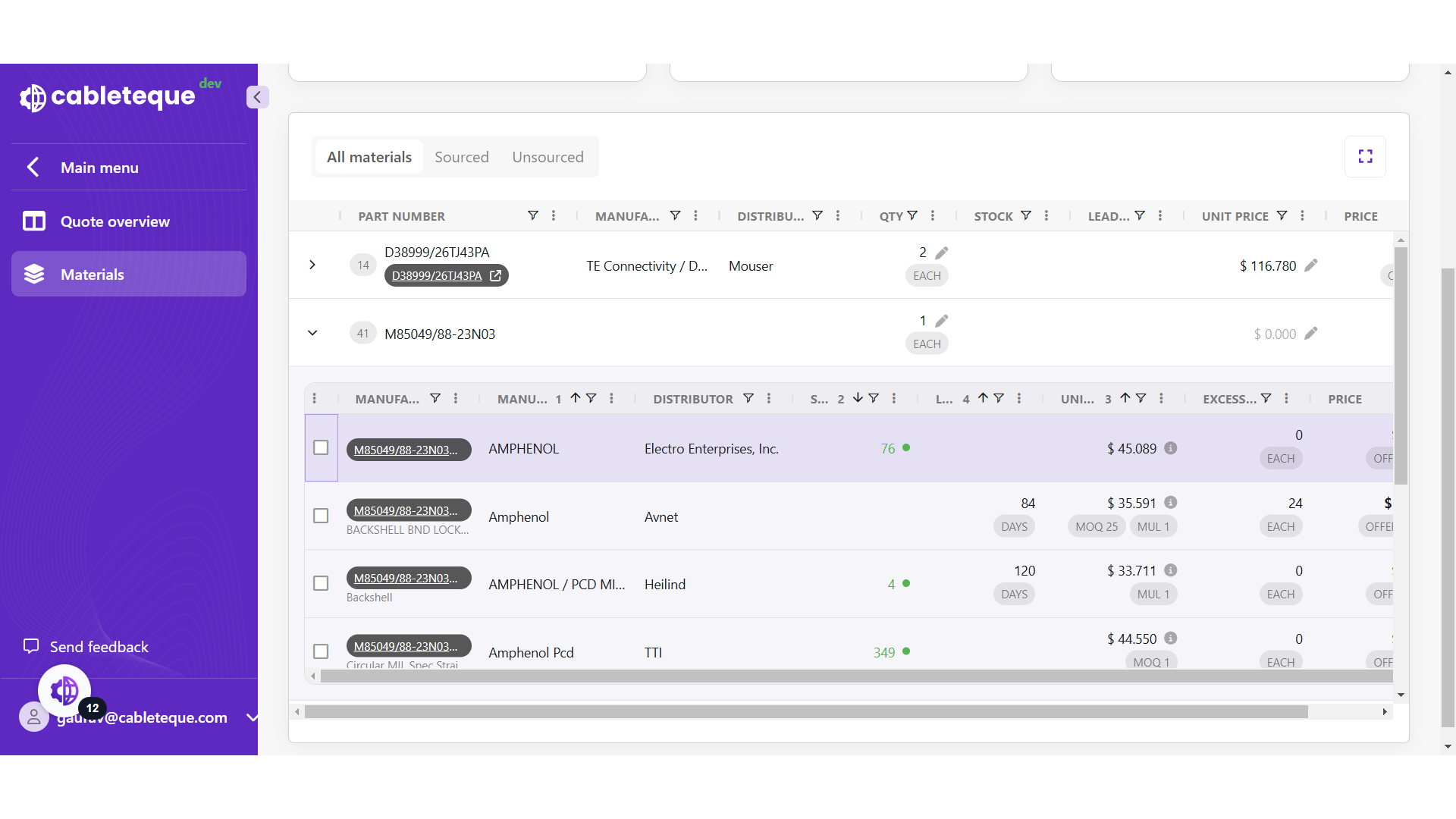
13. Find best offer
14. Select offer
Select the best offer as per requirement.
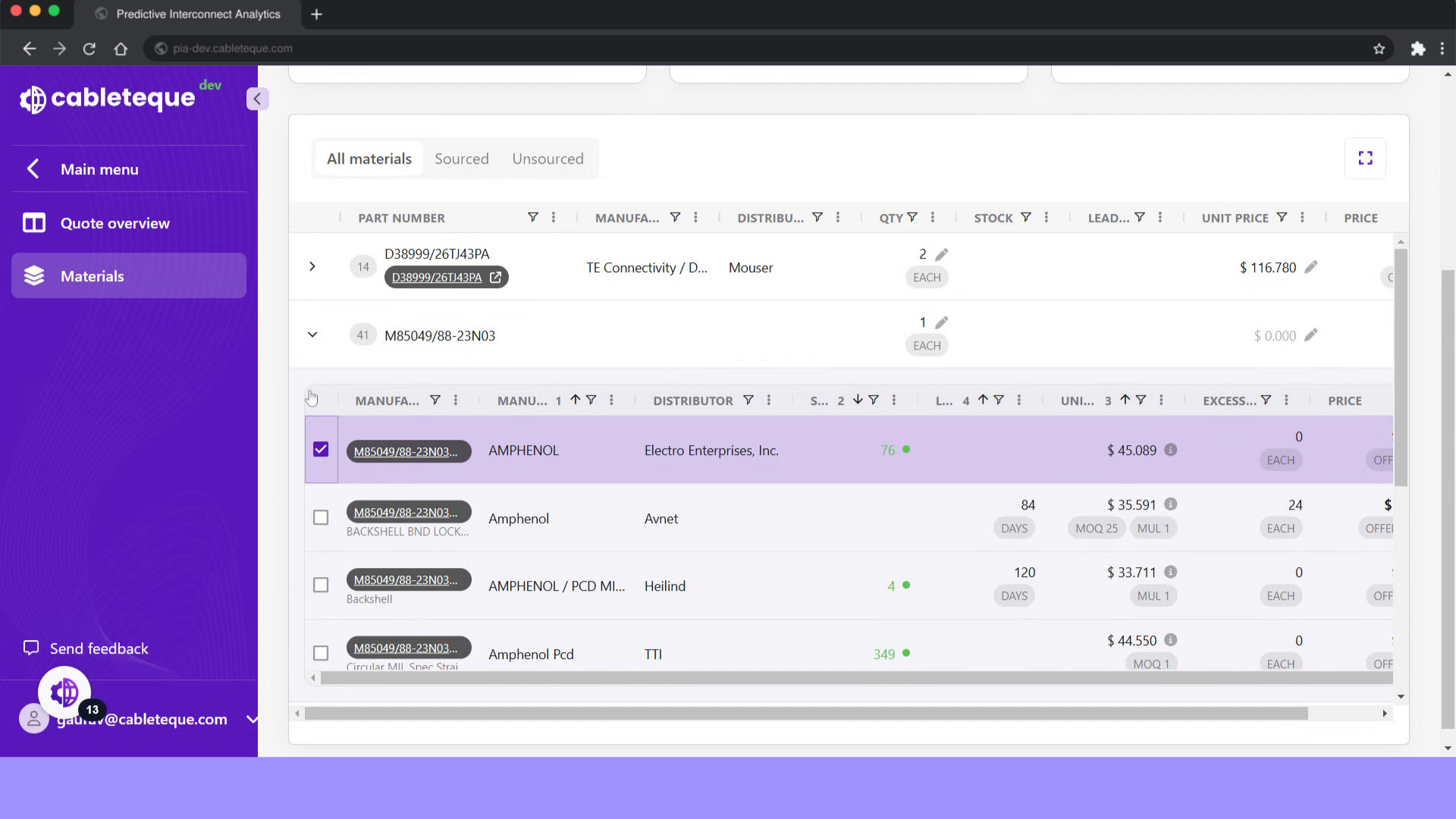
15. Collapse offer
Click on this icon to collapse the offers list.
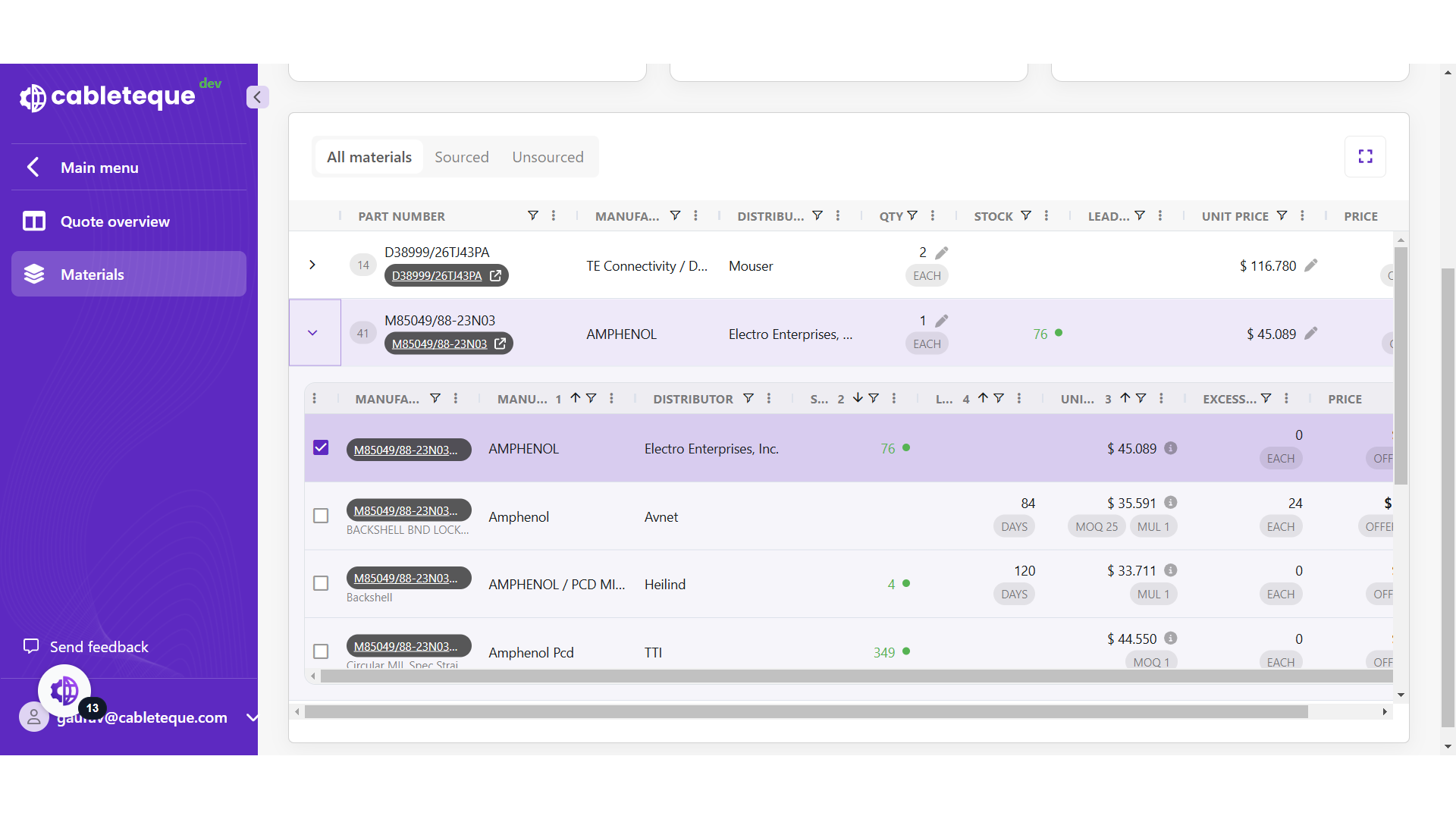
16. Select offers for all the parts
Offers can be selected for all the parts in same manner.
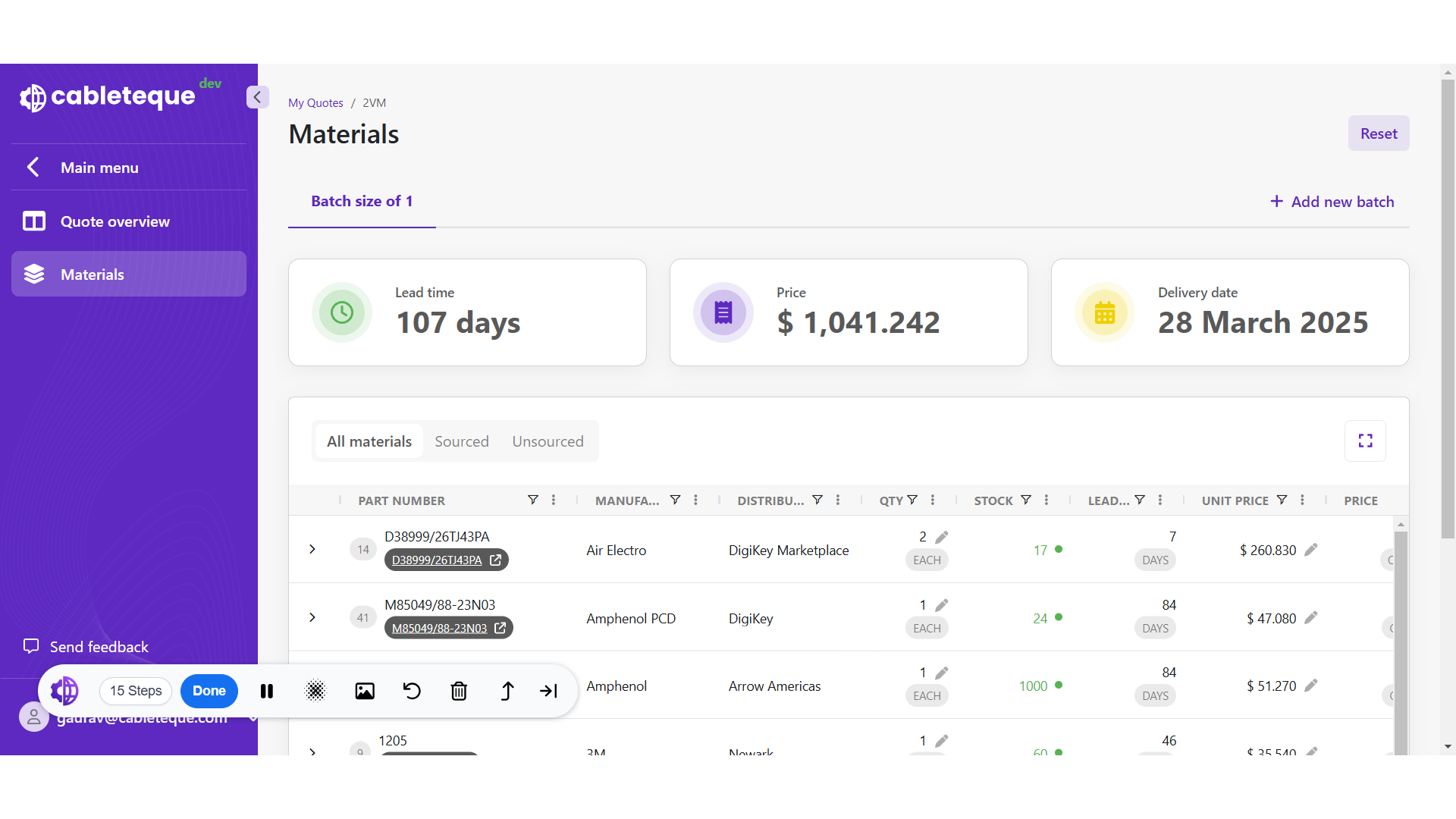
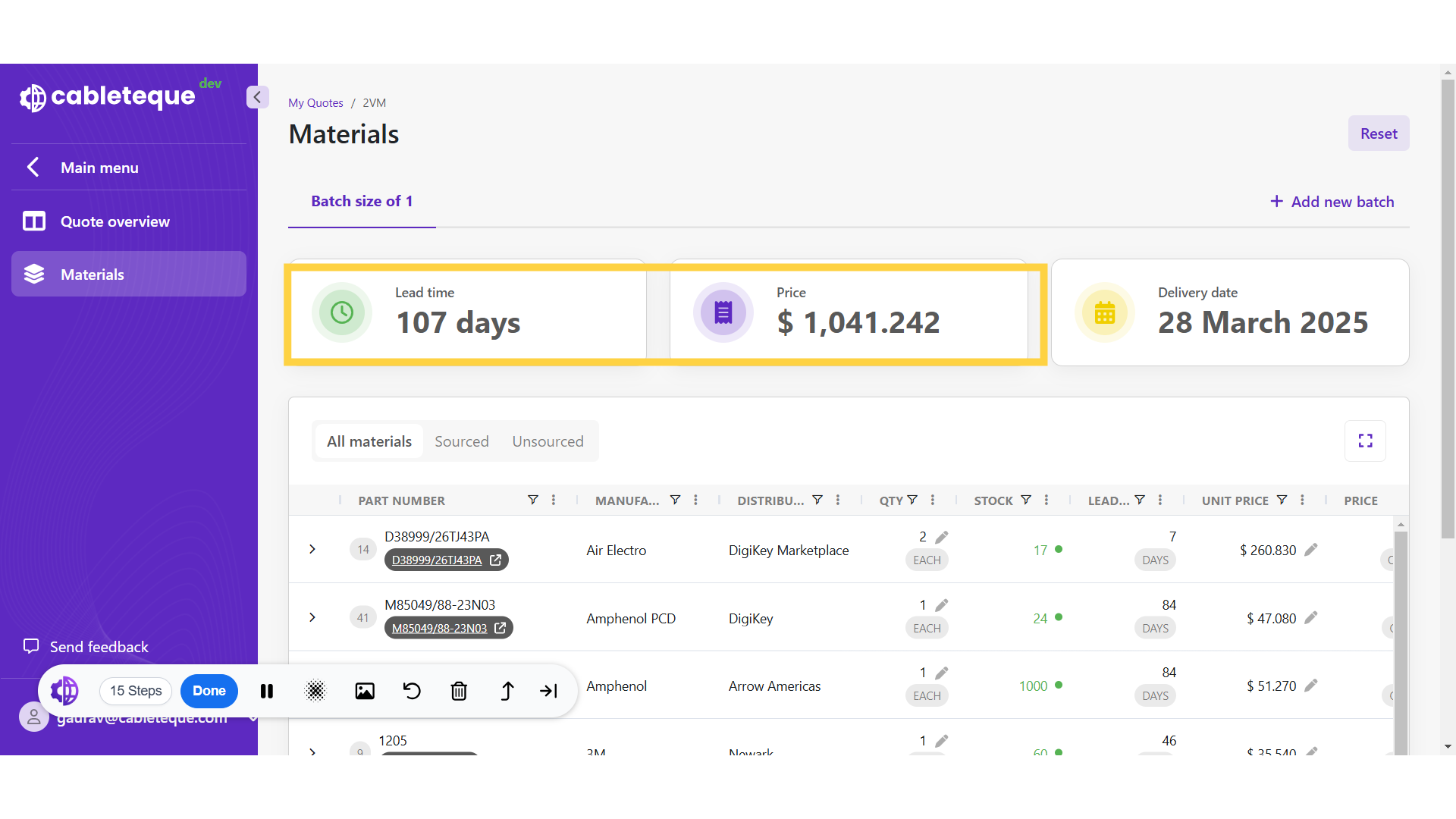
17. Lead time and Price
Total lead time and price of assembly varies as per selected offers.
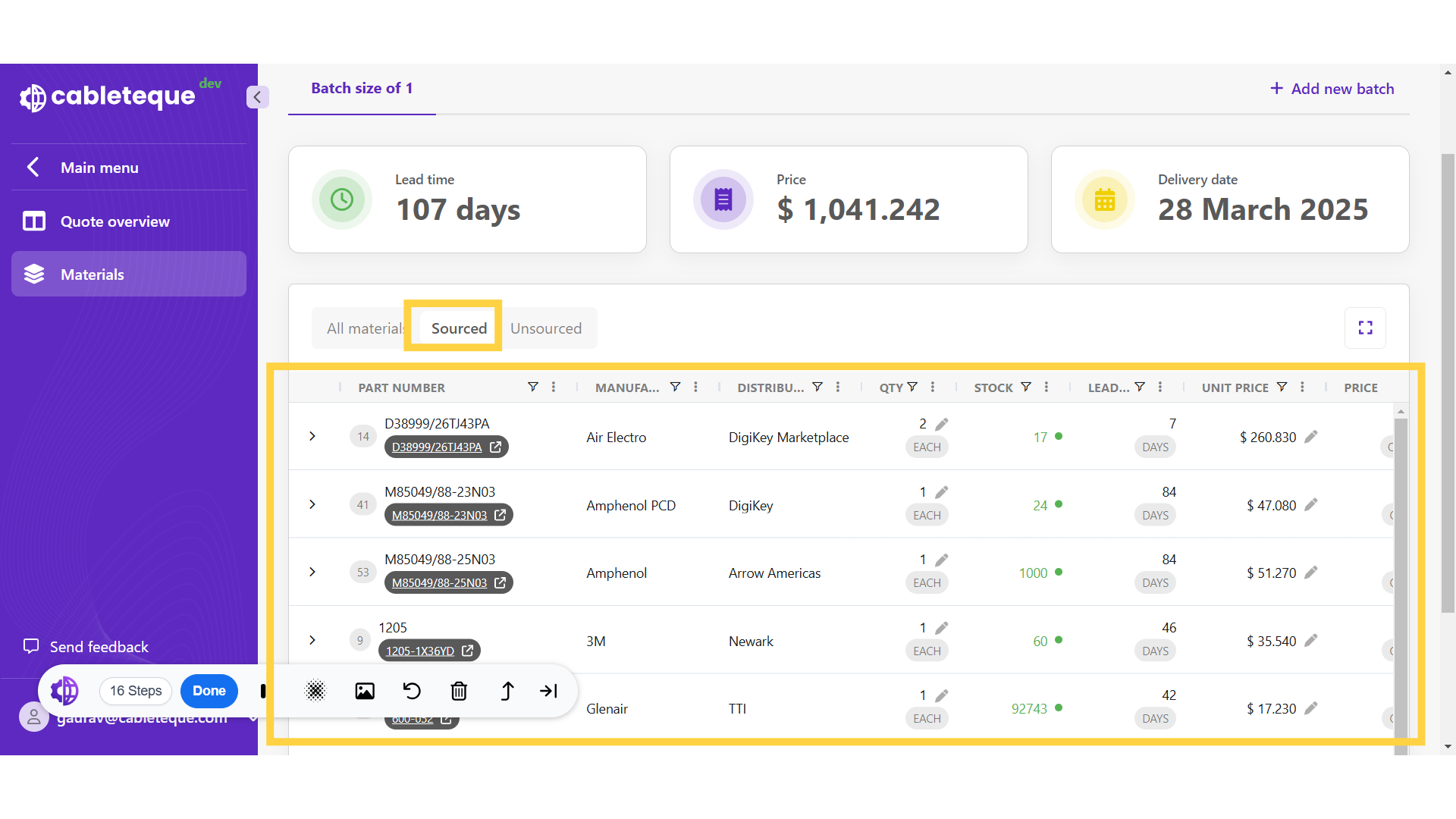
18. Click "sourced"
All parts for which offers have been selected are listed under "Sourced" tab.
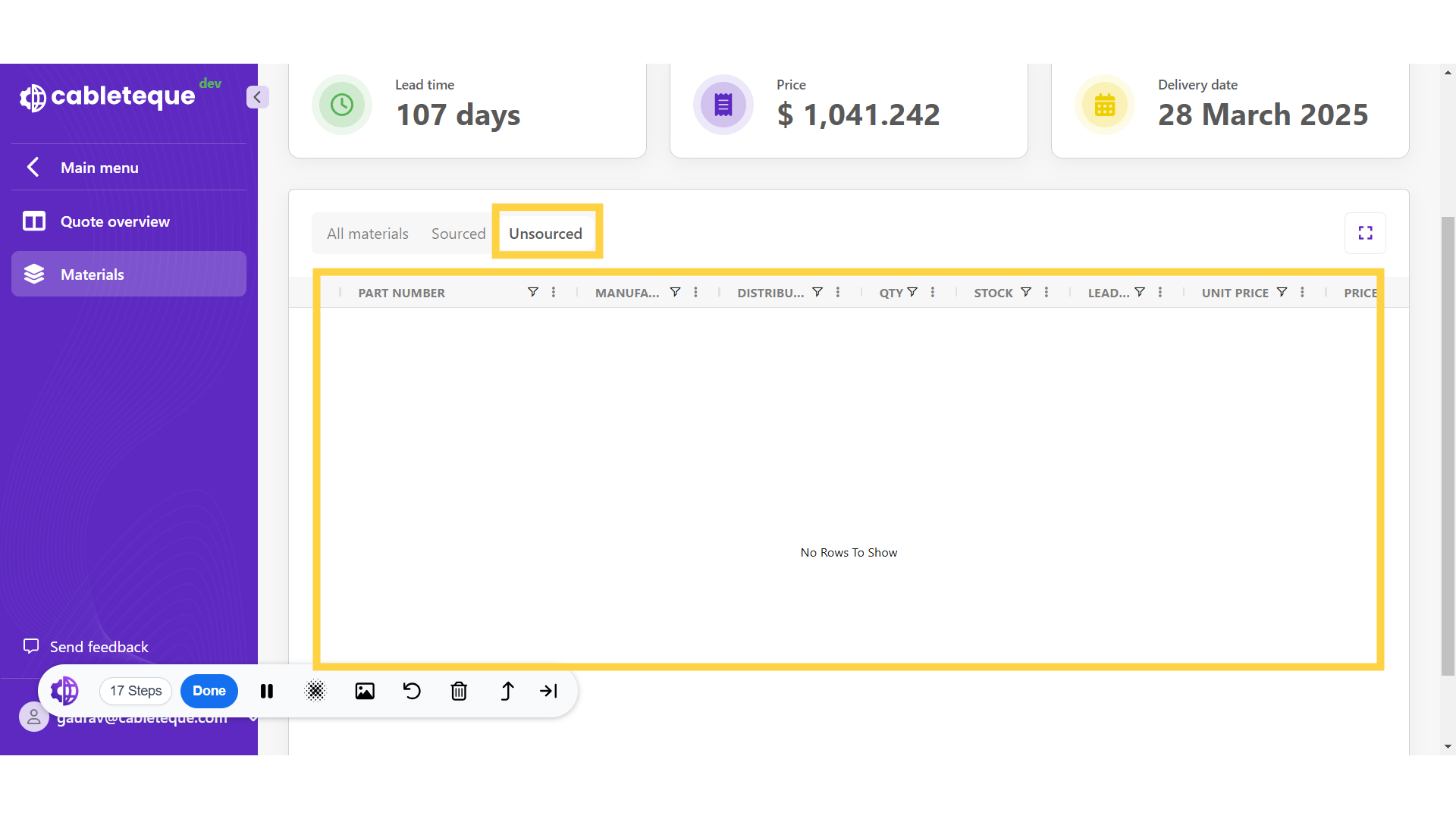
19. Click "Unsourced"
All parts for which offers have not been selected are listed under Unsourced tab. As here offers have been selected for all the parts, therefore no part is listed in Unsourced section.
This guide covered the process to efficiently select offers for the assembly parts. Thankyou